
Your render.
Beyond your workstation.
Follow a DaVinci Resolve Studio render from your phone, tablet, or another computer. Create an accountless link and keep the work moving.
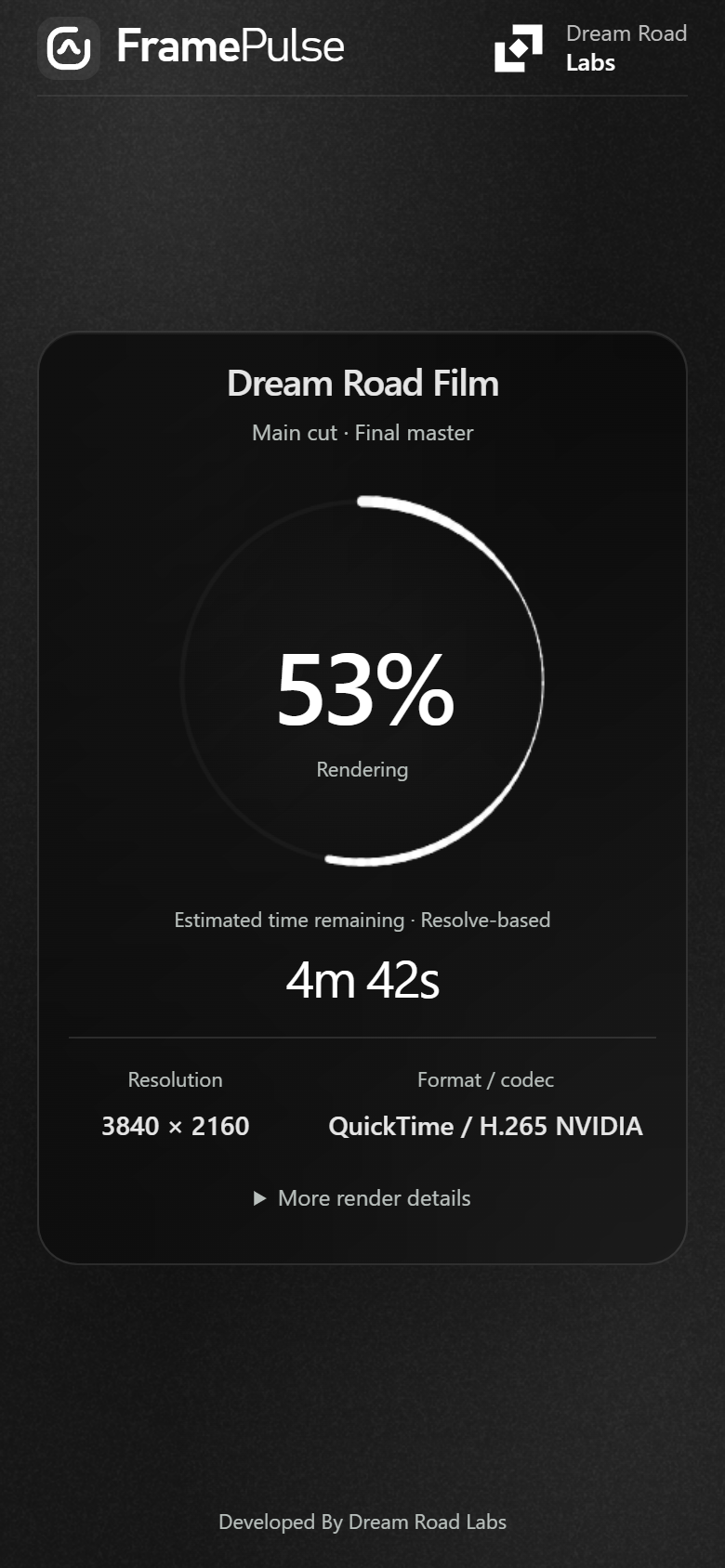
Read-only by design.
Keep an eye on the render without putting a hand on the workstation controls.
Automatic queue tracking
FramePulse binds to your active DaVinci Resolve project and follows the active render job. Sequential jobs, multi-delivery batches, and rerenders track continuously on the same link.
Open in any browser
Anyone with the link can follow live status from any browser on phone, tablet, or laptop. No account creation, login credentials, or mobile app installation required.
Status, not video files
FramePulse does not start, pause, or cancel renders, and it never uploads or transfers video files. It transmits only approved metadata, elapsed time, ETA, and progress percentages.
One link. A clear view.
Start before you render or attach while a job is already in progress.
-
Create a link
Open FramePulse in DaVinci Resolve Studio with your project active. Click Create to generate a monitor link bound to that project's normalized name.
-
Share the view
Copy the link to your phone or share it with producers, supervisors, or teammates waiting for the render. Anyone with the URL can view progress.
-
Render in Resolve
Start rendering using Resolve's normal controls. Keep FramePulse open and the workstation connected for continuous live telemetry updates.
Native desktop plugin.
Integrated workflow.
Designed to fit cleanly into DaVinci Resolve Studio's native Workflow Integrations interface.
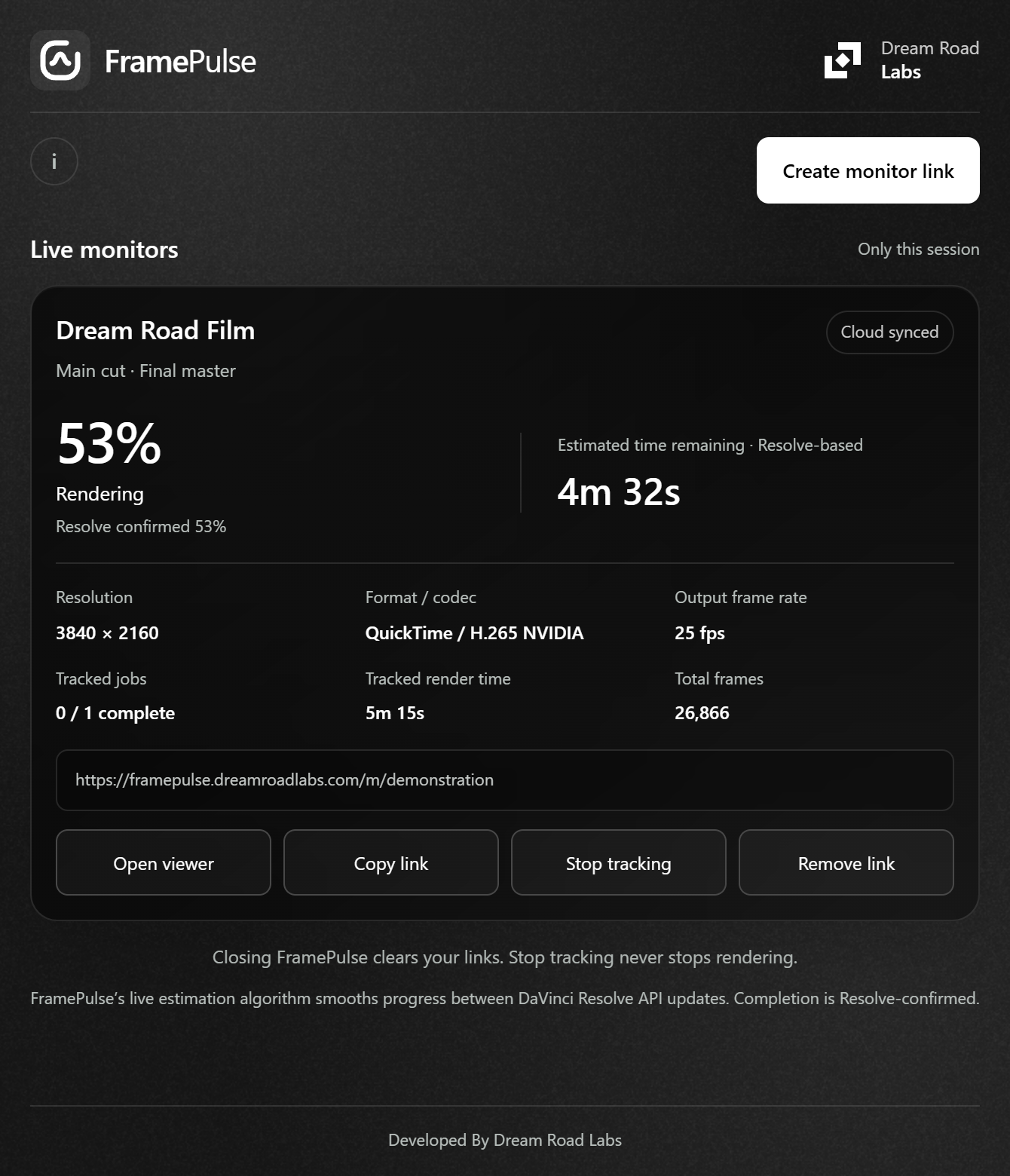
The desktop plugin runs as a compact panel inside Resolve Studio. It displays active project and timeline names, current render state, and quick controls to copy or manage links.
Startup updates: When opened, FramePulse checks for newer official releases and displays release notes with a direct download button. To update, simply close the FramePulse plugin window before running the new installer. Setup never touches your active timeline or rendering jobs.
Take the next render with you.
Free Windows setup. No separate Node.js installation required. Register to receive the official download link and start monitoring renders in your browser.
What's new in this release
System requirements
- Windows 10 or Windows 11 (64-bit)
- DaVinci Resolve Studio with Workflow Integration support
- Local WorkflowIntegration.node SDK module from your Resolve Studio install
- Windows administrator approval for plugin directory installation
- No separate Node.js runtime required
Before your first link
Frequently asked questions about setup, privacy, and tracking.
Which systems does FramePulse support?
The monitoring plugin supports Windows 10/11 x64 and DaVinci Resolve Studio with its local Workflow Integration SDK. Setup does not require Node.js. Viewers can use a browser on another computer, phone, or tablet. A macOS version of the plugin is not currently available.
How do I install FramePulse?
Register to receive the official Windows setup at Get FramePulse, approve administrator access and follow the component-check and installation steps. Close FramePulse before updating; setup never restarts Resolve. Read the installation guide for full details.
Why can progress differ from Resolve?
Live telemetry estimates fill the intervals between native progress updates. Estimates adapt as new information arrives. Completion is never inferred: FramePulse shows 100% only after Resolve explicitly confirms completion.
What happens when the viewer goes offline?
The viewer retains the last received status and freezes progress. Check that FramePulse remains open on your workstation, the bound project is active, and both devices have internet connectivity. A lost connection is not evidence that the render failed.
Does closing or removing a link cancel my render?
No. Stop tracking and Remove link disconnect monitoring only; they never cancel a Resolve render. Closing FramePulse clears desktop links. Old viewers retain their last offline snapshot until expiry.
How long does a link last, and what does it share?
A link has a fixed seven-day lifetime from creation. Anyone possessing the link can read normalized project and timeline names, approved render settings, and status metrics. Video files, output paths, native IDs, and writer credentials are never exposed. See privacy information for details.